
Finding the correct app for your drone’s camera is important for controlling and capturing footage. To make sure compatibility. Here is a detailed guide with key steps and official app download links for popular drone brands:
1. Lost? Start With the User Manual to Find Your Drone Camera App
- Action: Your drone’s user manual or quick start guide will often list the name of the app you need to control the camera.
- Where to Look:
- The App Name section in the manual.
- QR codes or download links to the app for your specific drone model.
- App instructions with the drone’s setup or connectivity steps.
Checking the Drone’s User Manual Pros:
- Direct and accurate: The manual will usually list the exact app you need for your model.
- Official recommendations: It ensures you’re downloading the right app for full compatibility with the drone’s features.
- Quick start: The manual often includes QR codes or direct links to download the app.
Checking the Drone’s User Manual Cons:
- Lack of detail: The manual might not explain how to troubleshoot or offer insights on common issues related to the app.
- Might be outdated: If you have an older manual, the app could have been updated or changed without reflecting the new version.
2. Manufacturer’s Website – The Safe Door to Your Drone Camera App

Each drone brand provides official apps that ensure compatibility and optimal performance. Here’s how to locate the correct app on the manufacturer’s site:
Steps:
- Visit the official website of your drone’s manufacturer.
- Navigate to the Support or Downloads section.
- Look for:
- The official app name for your drone model.
- Installation links for Android and iOS versions.
Pros:
- Most reliable source: Manufacturers provide official apps and versions that are optimized for their drones.
- Up-to-date info: The website will have the latest app versions and any critical updates or fixes.
- Downloads and support: You can usually find troubleshooting guides, user manuals, and other resources.
Cons:
- May require navigation: Some websites are harder to navigate, making it difficult to quickly locate the correct app.
- Limited to one brand: If you’re looking for a third-party or generic app for a compatible drone, manufacturer websites will not offer that.
Examples:
- DJI: DJI Downloads
- Holy Stone: Holy Stone Support
3. Identify Your Drone Model Before Searching the Camera App
You will need to know your drone’s exact model to ensure you’re downloading the correct app. The drone model name can be found in:
- The user manual.
- On the drone body (usually under the battery or on the bottom).
- The drone’s packaging or order confirmation.
- Every drone model may require a different app.
- Checking the model number is essential.
- Installing the wrong app can cause errors.
- Performance and compatibility depend on the correct app.
- Model-specific features are only unlocked in the right app.
- Both the manual and website usually ask for the model number.
- Knowing your model makes searching for the correct app easier.
- For long-term support, matching the right app with the model is crucial.
Pros:
- App-specific control: Knowing the exact model allows you to download the app that supports all of the camera and drone-specific features.
- No compatibility issues: Avoids the risk of using the wrong app which could lead to connection problems or limited functionality.
Cons:
- Requires attention to detail: If you’re unsure of your drone model, you might download the wrong app.
- Models with similar names: Some drones have very similar names (e.g., DJI Mini 2 vs. Mini SE), so identifying the exact model can be tricky.
4. Common Drone Camera Apps for Popular Brands – A Quick Shortcut
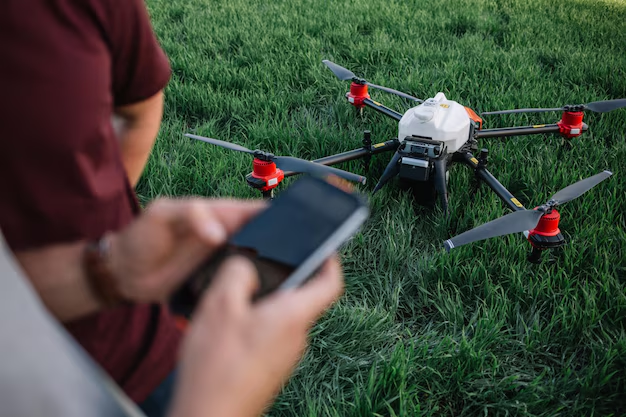
Here’s a list of popular drone brands, their camera apps, and official download links:
1. DJI Drones – Finding the Right Camera App (DJI Fly / DJI GO 4)
DJI is one of the most popular drone manufacturers and uses the DJI Fly or DJI GO 4 apps to control its cameras.
- DJI Fly App (for models like DJI Mini, Air 2, Mavic Air 2, etc.)
- App Features: Live video feed, camera control, flight control, camera settings.
- Official Links:
DJI Pros:
- User-friendly interface: Very intuitive and easy to use.
- Full camera and flight control: Provides complete camera control (tilt, exposure, settings) and flight information.
- Good performance: Stable connection and real-time video feed with minimal lag.
- Compatibility: Supports DJI Mini, Air, and Mavic series drones.
DJI Cons:
- Limited to DJI drones: Only works with DJI models; won’t support other drones.
- Battery drain: The app can drain your phone’s battery quickly, especially if running GPS and video feed simultaneously.
- Occasional connection issues: Some users report intermittent app crashes or signal loss.
i. DJI GO 4 App
- DJI GO 4 App (for models like Phantom, Mavic Pro, Inspire 2)
- App Features: Full camera control, live video feed, camera settings, flight telemetry.
- Official Links:
DJI GO 4 App Pros:
- Comprehensive features: Full control over the camera, gimbal, and flight parameters.
- Professional grade: Ideal for advanced users who need detailed flight and camera data.
- Supports higher-end models: Works with Phantom, Inspire, and Mavic Pro series.
DJI GO 4 App Cons:
- Complexity: Can be overwhelming for beginners due to its detailed control settings.
- Older interface: The interface is more dated compared to the DJI Fly app, which has a more modern design.
2. Holy Stone – Choosing the Best Camera App (HS GPS V5 / Ophelia GO)
Holy Stone drones, like the HS720 or HS510, use the Ophelia GO or HS FPV apps.
i. Ophelia GO
- Ophelia GO (for models like HS720, HS700, HS510)
- App Features: Live FPV video, camera tilt control, drone settings, and flight modes.
- Official Links:
Pros Ophelia GO:
- Simplicity: Easy to use, perfect for beginners.
- Integrated camera control: Allows direct camera control such as tilt and recording via the app.
- Good for FPV: Provides a smooth FPV experience with minimal latency.
Ophelia GO Cons:
- Basic features: Lacks some of the advanced controls seen in higher-end drone apps (e.g., no pro settings or detailed telemetry).
- Limited compatibility: Works primarily with Holy Stone drones and does not support other brands.
ii. HS FPV
- HS FPV (for older models like HS100, HS110)
- App Features: FPV live streaming, video recording, camera tilt control.
- Official Links:
HS FPV Pros:
- Good live streaming: Provides a reliable live video feed with good quality.
- Straightforward interface: Easy for new drone users to get started with FPV.
HS FPV Cons:
- Limited camera settings: More advanced camera controls (like exposure or manual settings) are not available.
- Lag in video feed: Some users report lag or stutter, especially at longer ranges.
3. Parrot – Unlocking the Drone Camera with FreeFlight Pro
For Parrot drones like the Anafi or Bebop, use FreeFlight Pro.
- FreeFlight Pro (for models like Bebop 2, Anafi)
- App Features: Camera settings, flight planning, live video feed, and controls.
- Official Links:
Parrot Pros:
- Advanced controls: Offers precise camera and flight controls with a professional-grade interface.
- Multiple drone models: Works with a variety of Parrot drones (Bebop, Anafi, etc.).
- Well-supported: Regular updates and bug fixes.
Parrot Cons:
- Requires high-end phone: The app can be demanding on hardware, especially for smooth video streaming.
- Learning curve: Beginners may find the app’s features overwhelming.
4. Syma – Finding the Right FPV App (Syma FPV)
For Syma drones like the Syma X5C or X8G, use the Syma FPV or Syma Go apps.
- Syma FPV (for models like Syma X5C, X8G)
- App Features: Live FPV video streaming, drone settings.
- Official Links:
5. Eachine – Connecting to Camera with Eachine FPV App
For Eachine drones like the E58 or E520, the Eachine FPV app is used.
- Eachine FPV (for models like Eachine E58, E520)
- App Features: Camera control, live video feed, drone settings.
- Official Links:
5. Connect to the Drone’s Wi-Fi Network – The Hidden Path to the Camera App
Once you have the correct app:
- Power On your drone.
- Connect your smartphone to the drone’s Wi-Fi network (usually displayed as something like “DJI_1234” or “SYMA_XY”).
- Open the app and establish a connection to the drone’s camera.
6. Search Online Smartly to Discover the Right Camera App
If you are unsure of the app, you can perform an online search:
- Search for “[Your Drone Model] camera app download.”
- Example search: “Holy Stone HS720 app download”
- Make sure to visit trusted sources (such as the official brand websites or app stores).
7. Scan QR Code – Fastest Way to Install Your Drone’s Camera App
Many drones include a QR code either on the packaging or the drone body itself that directly links to the app’s download page. Simply scan this code using your phone’s camera app or a QR code scanner.
8. Install and Set Up the Camera App for Drone Flight Experience
Once you find the app:
- Download the app from the App Store (iOS) or Google Play Store (Android).
- Allow permissions for camera, microphone, and storage (if prompted).
- Launch the app and pair it with your drone.
9. Troubleshooting Tips
- No Video Feed:
- Ensure your phone is connected to the drone’s Wi-Fi.
- Restart the drone and the app if the feed is not working.
- App Not Connecting:
- Check for app updates.
- Re-pair the drone and app.
- App Compatibility:
- Ensure your phone’s operating system (iOS/Android) is supported by the app.
Conclusion
Quick Comparison of Methods:
| Method | Pros | Cons |
| User Manual | Direct info, may include QR codes. | Outdated or lacks troubleshooting help. |
| Manufacturer Website | Official, up-to-date, and reliable. | Direct info may include QR codes. |
| Popular Apps | Full camera & flight control, optimized for each brand. | Only works for specific brands, may drain battery. |
| Search Online | It can be hard to navigate, and usually only for one brand. | Risk of unreliable or third-party apps. |
| QR Codes | Quick, direct access to the app. | A wide variety of apps and community suggestions. |
If your drone isn’t capturing clear footage, learning How to repair drone camera can save you time and money before opting for a replacement.